Tagged: SharePoint 2013
Updating Legacy SharePoint Customizations to the Add-in Model
If you follow this blog, you have probably read many of my posts through the years dedicated to the Add-in (formerly app) model for SharePoint 2013, 2016, and SharePoint Online. Microsoft introduced the Add-in model in SharePoint 2013 to address the various shortcomings associated with running custom code on the SharePoint server — most notably, of course, that custom code cannot be deployed to SharePoint Online in Office 365. SharePoint-hosted Add-ins are great for simple functionality that can be achieved with 100% client-side solutions (HTML, CSS, and JavaScript), while provider-hosted Add-ins allow you to run custom server-side code in Azure or anywhere other than the SharePoint server.
Using the Add-in model is a no-brainer for most new development efforts, especially if you are developing for SharePoint Online and still need to write server-side code. (At the time of this writing, the new SharePoint Framework is still in Developer Preview but is definitely worth adding to your repertoire for client-side SharePoint development in the years to come!)
But what about your existing solutions? Many organizations using SharePoint maintain large portfolios of custom code solutions that leverage different legacy development approaches advocated by Microsoft through the years, and most of the custom code developed for earlier versions of SharePoint cannot be directly migrated to the cloud. If your organization decided to move to the cloud tomorrow, where would you begin?
Taking inventory of your customizations
I have found that most legacy SharePoint customizations can be placed into the following categories:
- User interface enhancements (master page, branding, themes, custom web parts)
- Declarative items (XML for custom site columns, list instances, and content types)
- Timer jobs (and other administrative extensions to the platform) running in SharePoint Central Administration on-premises
These customizations may take the form of farm or sandboxed solutions that depend on SharePoint’s legacy feature framework. In the case of some user interface customizations, custom HTML markup, CSS, or even JavaScript might be embedded directly within a site’s master page file. For the most part, these are situations we should try to avoid as much as possible when migrating our customizations to the cloud for the following reasons:
- Farm solutions cannot be deployed to SharePoint Online.
- Sandboxed solutions that contain managed code can no longer be deployed to SharePoint Online (note that sandboxed solutions contain a managed code assembly by default, even if the solution does not contain any managed code).
- Custom master pages, while still supported in SharePoint Online, should be avoided unless absolutely necessary. (Microsoft has a history of making significant changes to the default master page in SharePoint Online, such as the addition of the app launcher/waffle/Hollywood Squares in the upper left corner. Sites with heavily customized master pages may not always have access to these changes as they are introduced in the future.)
The role of the Add-in model
When migrating these customizations, keep in mind that you will not necessarily be building and deploying a SharePoint Add-in to replace each customization. In fact, in many cases, you will simply be leveraging techniques from the Add-in model. These include paradigms that were introduced and/or popularized with the introduction of the Add-in model:
- Using client-side script wherever possible
- Remote provisioning of assets (everything from CSS/JavaScript files to site columns, content types, etc.) using the .NET Managed client object model (CSOM) or PowerShell
- Running server-side code outside the SharePoint server that communicates with SharePoint via its APIs
In some cases, all you may need to do is build and deploy a “throwaway” provider-hosted Add-in within a local development environment that performs some one-time remote provisioning tasks, but is not intended to be accessed by end users and can be removed after its work is done.
Add-in model techniques enable us to make our SharePoint customizations with a “lighter touch.” By lighter touch, I am referring to a lighter footprint and/or impact on the SharePoint server. As we decrease the burden on the SharePoint server, we enable SharePoint to run more reliably and efficiently while also making it easier to administer and upgrade (at least on-premises…yes, these techniques all work on-prem as well!) To better explain this concept, I put together the table below contrasting legacy SharePoint development approaches with their modern lighter touch equivalents:
| Legacy Approach | Lighter Touch |
|---|---|
| Farm solutions with custom code running in the SharePoint IIS worker process | Provider-hosted Add-in with custom code running outside of SharePoint |
| Farm or sandboxed solutions that deploy declarative artifacts such as site columns, content types, and list instances | Remote provisioning these artifacts from a provider-hosted Add-in using CSOM |
| Custom master pages with embedded markup, styles, and script | Remote provisioning of branding assets, embedding of JavaScript UI customizations using ScriptLink custom actions |
| Custom timer jobs running in Central Administration using the SharePoint server object model | Remote timer jobs running as Windows scheduled tasks or Azure WebJobs using CSOM |
SharePoint Developer PnP: here to help!
Because the Add-in model represents such a strong departure from the way things were done in the past with full-trust code in SharePoint, Microsoft started the SharePoint Developer Patterns and Practices (or PnP) initiative to assist developers with transforming their existing solutions to be cloud-ready as they migrate to SharePoint Online in Office 365.
The PnP team maintains several Github repositories that include reusable, production-ready components, templates, and solution starters that demonstrate the preferred modern approach to SharePoint development — making customizations with a lighter touch wherever possible.
Eric Overfield just published a great blog post detailing the PnP initiative and how you can get involved.
My Pluralsight course
If you are interested in learning more, I recently published a Pluralsight course with lots of demos: Updating Legacy SharePoint Customizations to the Add-in Model. The course covers the process of migrating a heavily customized on-premises SharePoint site to SharePoint Online from start to finish. The clip below is a demo from the course showing how a legacy timer job customization can be made cloud-ready with the help of the PnP Timer Job Framework and Azure WebJobs.
In this course, you will see me leverage the PnP Core Component to drastically simplify writing .NET Managed CSOM code. I also use several great samples and solution starters from the PnP team, all with the objective of easing the pain associated with migrating legacy SharePoint customizations to the Add-in model.
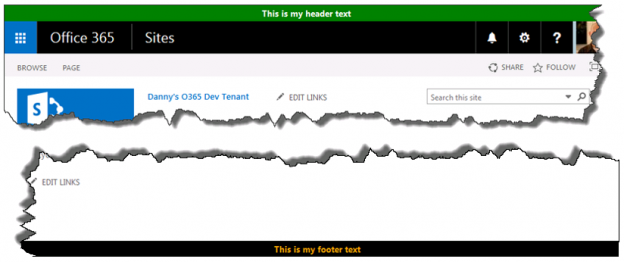
Custom site header and footer using a SharePoint-hosted add-in
In this post, I will show you how to create a custom site header and footer for SharePoint Online/Office 365 that will render on all pages using a SharePoint-hosted add-in. This could be used to post critical alerts or to specify the level of business impact of the content stored within a particular site (e.g., high, medium, or low).
This add-in will accomplish the following, all without a single line of server-side code:
- Upon installation, deploy 3 JavaScript files to the Style Library of the host web
- Register 3 user custom actions in the host web to ensure these JavaScript files are loaded on every page
- Via an add-in part, provide a mechanism for users to enable/disable and set properties of the custom header and footer (e.g., message text, background/text color)
- Store and retrieve configuration parameters for the site header and footer in the host web’s property bag
Rendering a custom header and footer
We might be tempted to edit the master page directly to add a header and a footer, but this is not considered a best practice (especially in SharePoint Online, where master page changes can be rolled out quite frequently). Instead, our add-in will make use of JavaScript techniques to insert
- In SharePoint Online/Office 365, our header (with ID customHeader) will be inserted above thewith ID suiteBarTop (for SharePoint 2013 on-premises, you’ll need to update the script to reference ID suiteBar instead).
- Our footer
(with ID customFooter) will be inserted below thewith ID s4-bodyContainer.- NOTE: The
IDs in SharePoint Online are never set in stone and could change at any time. If they do, you will need to update HeaderFooter.js to reference the newIDs.jQuery makes it easy to create our custom header and footer
elements and insert them in the appropriate location within the DOM with its .insertBefore() and .insertAfter() functions following this approach:$("HEADER TEXT").insertBefore("#suiteBarTop"); $("").insertAfter("#s4-bodyContainer");Making the footer “sticky”
Huge shout-out to Randy Drisgill for his SharePoint 2013 Sticky Footer implementation. The “sticky” footer anchors the footer
to the bottom of the page (or the bottom of the browser window if the available screen real estate exceeds the amount of content on a given page). I only needed to make one change to Randy’s StickyFooter.js implementation, and that was to account for the height offset imposed by the addition of our customHeader:var difference = windowheight - (bodyheight + ribbonheight + footerheight + $("#customHeader").outerHeight());Provisioning files to the host web via JavaScript
For anyone following the OfficeDev PnP, the concept of remote provisioning to allow add-ins to deploy files to the host web should be a familiar one. However, the PnP examples make use of the .NET Managed CSOM to do this, which is a perfectly valid technique but would require us to develop a provider-hosted add-in (allowing that code to run in Azure or some other web server). Since I wanted to create a SharePoint-hosted add-in, I had to find a way to accomplish this using only JavaScript. Thankfully, I found Chris O’Brien’s post with code showing how to provision files to the host web using JavaScript. You will see that my code is based heavily on the example he provides and provisions the following files from the add-in web to the host web:
- jQuery-1.9.1.min.js – jQuery
- HeaderFooter.js – our logic to read the header/footer configuration data from the host web property bag and render the header and footerelements
- StickyFooter.js – Randy Drisgill’s Sticky Footer implementation for SharePoint 2013 (with the one tweak described above)
Add-in part for setting configuration values
The add-in also includes an add-in part (deployed to and rendered from the add-in web) that allows users to enable/disable the header/footer and set the text and colors:
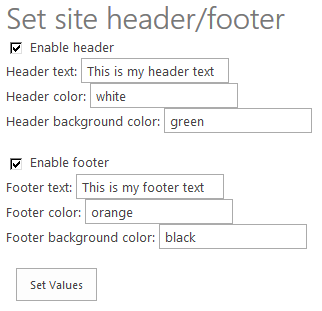 When the add-in part loads, it uses JavaScript to query the property bag of the host web to see if these settings already exist and if so, prepopulates the values in the form. Once the user has made the necessary changes, clicking Set Values will save the changes back to the property bag (again, using JavaScript).
NOTE: The need for our add-in to read and write data to and from the host web property bag requires us to request the FullControl permission at the Web scope in our add-in manifest (AppManifest.xml):
What about MDS?
SharePoint 2013 introduced the Minimal Download Strategy (MDS), which reduces page load time by sending only the differences when users navigate to a new page. While this is a wonderful benefit, it wreaks havoc with solutions that need to manipulate the DOM every time a new page is loaded. In other words, our header and footer may render perfectly on the home page when we first load it, but thanks to MDS when we navigate to the “Documents” library, only part of the page will actually be re-rendered. Our header and footer will not display properly (if at all) when only part of the page is re-rendered to support a new page request.
For much deeper reading on this subject, I encourage you to go through Wictor Wilen’s blog posts introducing the MDS and explaining the correct way to execute JavaScript functions on MDS-enabled sites. My code is based on Wictor’s solution and works properly in scenarios where MDS is enabled and where it is not (e.g., on Publishing sites or any site where the MDS feature has been deactivated).
We handle MDS by calling RegisterModuleInit() with the function we need to execute on every page load in HeaderFooter.js:
if (typeof _spPageContextInfo != "undefined" && _spPageContextInfo != null) {
    // MDS enabled
    RegisterModuleInit(_spPageContextInfo.siteServerRelativeUrl + 'Style Library/Headerfooter.js', DJ.HeaderFooter.Render.initializeHeaderFooter);
}
// Run now on this page (and non-MDS scenarios)
DJ.HeaderFooter.Render.initializeHeaderFooter();
The code
I have posted the code for this add-in to GitHub at the following location:
https://github.com/dannyjessee/SiteHeaderFooter
I encourage you to download it, try it out in your environment, and let me know if you run into any issues with it. My sincere thanks go out to Chris O’Brien, Randy Drisgill, and Wictor Wilen for giving me the building blocks needed to put this add-in together.
Yes, you can still use the AjaxControlToolkit with SharePoint 2013 on-premises
For years, it seems developers have struggled with finding exactly the right set of steps to leverage the AjaxControlToolkit in their SharePoint applications. In SharePoint 2010, you had to download a specific legacy version of the toolkit and make a handful of
entries in your solution manifest (obviously we can only use the AjaxControlToolkit on-premises since it requires deploying a DLL to the Global Assembly Cache). You also had to update your master page to leverage the toolkit’s own ToolkitScriptManager. If you’re looking for a verified set of steps for using the AjaxControlToolkit with SharePoint 2010, see Sohel’s blog post here. It was a lifesaver for me a few years ago. But what if you’re stuck having to upgrade a solution that depends on the AjaxControlToolkit to SharePoint 2013 today? I found myself in precisely this situation not too long ago. Based on my web searching, there doesn’t appear to be a great deal of interest surrounding this topic anymore, but in case you find yourself in my predicament, here is what to do:
- Download the latest version of the AjaxControlToolkit here. At the time of this writing, I have verified these steps with the May 2015 update – v15.1.2.
- Run the installer in your development environment.
- Find the location where the files were installed and grab a copy of AjaxControlToolkit.dll from the ASP.NET AJAX Control Toolkit\Bin directory. Place this file somewhere you can easily reference it from your SharePoint project. I like to make an “External References” folder at the same level as my .sln file to keep the path references simple.
- In Visual Studio, create a new empty SharePoint 2013 project as a Farm Solution.
- Add a reference to AjaxControlToolkit.dll by right-clicking References and selecting Add Reference…
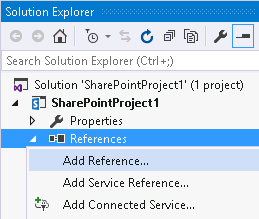
- Browse to the location of AjaxControlToolkit.dll. This will allow you to reference the toolkit controls in your code.
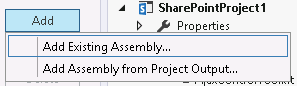
- We need to ensure that AjaxControlToolkit.dll is deployed to the GAC with our farm solution. To do this, we must update the package manifest. In Solution Explorer, expand the Package folder and double-click Package.package. Go to the Advanced tab and click Add, then Add Existing Assembly…
- In the Source Path area, navigate to the location of AjaxControlToolkit.dll and ensure GlobalAssemblyCache is selected as the Deployment Target. Press Click here to add a new item. Enter AjaxControlToolkit in the Namespace and Assembly Name areas. When complete, the dialog should look like this:
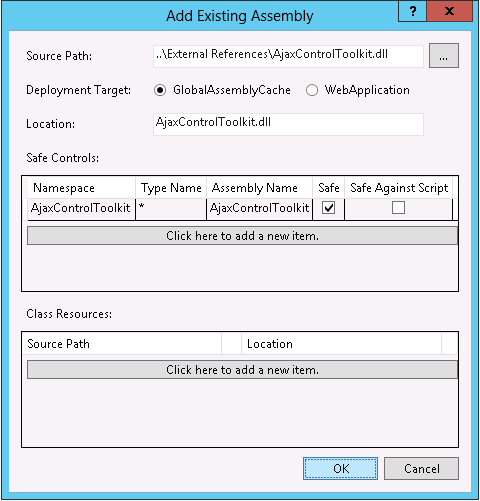
- Deploy your solution. You can verify the AjaxControlToolkit assembly has been deployed to the GAC (C:\Windows\Microsoft.NET\assembly\GAC_MSIL).
- Anywhere you would like to leverage the toolkit, ensure you add the following declaration to your page/visual web part user control:
<%@ Register Assembly="AjaxControlToolkit, Version=15.1.2.0, Culture=neutral, PublicKeyToken=28f01b0e84b6d53e" Namespace="AjaxControlToolkit" TagPrefix="asp" %>
You do NOT need to update any master pages to use the ToolkitScriptManager because the v15.1 update of the AjaxControlToolkit removed it in favor of the standard ScriptManager. Rejoice!
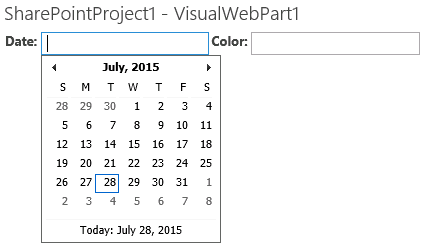
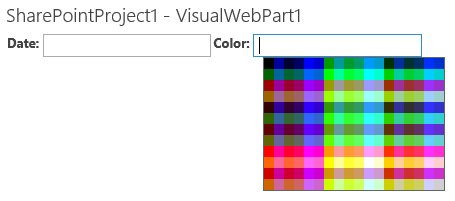 Although the AjaxControlToolkit may be waning in popularity among modern SharePoint developers, it still contains some pretty useful controls (CalendarExtender, ColorPickerExtender, etc.) For any developers who need to update a legacy solution leveraging the AjaxControlToolkit for SharePoint 2013 without the budget or resources to adopt a different approach, know that it can be done without many of the headaches that existed in the past.
What’s in a name? The challenges posed by renaming SharePoint “apps” to “Add-ins”
As you probably know by now, the following message started appearing on all MSDN pages related to apps for SharePoint in early May (the wording has recently been tweaked; the latest version of the message is shown below):
 The Note above links to New name for apps for Office and SharePoint.
My initial reaction to this news was something to the effect of, “OK, that’s interesting but no biggie. I’ll just make a mental note to say Add-in now instead of app (oh, and do a global search and replace in all my slide decks)…”
Basically just did a global find and replace from “app” to “Add-in” for my #SPSBMORE slide deck. This is going to be fun to talk through!
— Danny Jessee (@dannyjessee) July 8, 2015
The more I thought about it, though, this simple name change was going to pose many challenges for customers and consultants alike. I have been speaking about “apps for SharePoint” for almost three years now and one of the most trivial, yet biggest stumbling blocks seemed to be:
“So when I want to add a custom list to my site, I go to ‘Add an app’ now?”
“Well, yes, but doesn’t that at least make more sense than going to ‘More Options…’?”
“I guess. But do I need to configure the app domain and do all that other stuff you talked about just to add a list now?”
“No, you only need to do that if you will be connecting to the Office Store or if your developers will be leveraging the app model.”It’s already been more than a little awkward as I feel the need to interject whenever someone says something about “apps for SharePoint” or the “SharePoint app model.”
Along with a few other developers and consultants, I shared my concerns about the name change in semi-public discussions on Facebook and Yammer. As a result, Jeremy Thake was kind enough to publish a blog post containing the Office 365 ‘App Model’ rename cheat sheet. This post is fantastic and gives some more background about why the name change was necessary. Jeremy has certainly taken a beating from some of the folks out there who are frustrated, confused, and/or bewildered by the name change, and I applaud his efforts in listening to our concerns and providing this level of information to us.
Having spent the better part of the last three years educating our customers and development teams about the “app model,” we must now update our vocabulary to ensure we are speaking with accuracy and precision about the many facets of custom development for SharePoint and Office 365. The “cheat sheet” is a good start, but it omits at least a few relevant “app-isms” that I have listed below by what I assume will be their new names:
- Add-in prefix
- Add-in domain
- Add-in catalog
- The file extension of the generated Add-in package (currently *.app)
- Add-in manifest (AppManifest.xml)
- Add-in principal
- Add-in-only calls to SharePoint
- Add-in authorization policy types (Add-in + User, Add-in-only)
- Add-in Management Service Application
- Add-in registration and management pages (currently /_layouts/15/AppRegNew.aspx, AppInv.aspx, AppPrincipals.aspx)
- Countless other Add-in-related PowerShell cmdlets and APIs (NOTE: word on the street is that the app-related names referenced in the APIs will not be changing)
After three years, there is obviously a great deal of sample code and documentation out there that references the “app model.” The Office 365 PnP repository is no exception:
Started updating “SharePoint App” to “SharePoint Add-In” in PnP repo. 1111 hits for “SharePoint App”. This is going to be a very long day.
— Vesa Juvonen (@vesajuvonen) May 27, 2015
People who are willing to invest the time and energy to ensure that documentation and tooling around SharePoint Add-ins is up-to-date with the proper naming should be lauded, as there will no doubt be a great deal of confusion among customers and developers as they figure out what terminology to use and which examples are relevant when searching for accurate, up-to-date information about building SharePoint Add-ins. It appears that folks who are fortunate enough to be under NDA with Microsoft also have a better sense of why this name change was necessary, so let’s hope that information makes its way out to the rest of the community soon so we can answer the inevitable questions from our customers about “Why?” or “What’s the difference between an app and an Add-in?” or “Now where do I go to add a custom list to my site?”
(Yes, you guessed it…to add a custom list to your site, you will soon have to go to “Add an Add-in.”)
What are your thoughts on this change? Let’s keep the discussion going. I will be updating this post as we experience the impact of these changes over time.
Getting “Unexpected response data from server” error using SharePoint JSOM?
I was clearing the dust off an old demo for my session on cloud-hosted apps at SharePointFest DC next month when I ran into a problem. As I walked through the demo (which I had given three times before at SPS Events in Boston, Baltimore, and DC), I was getting an error when testing my ability to query for list data in my cloud-hosted app’s app web in my Office 365 developer tenant using JSOM:
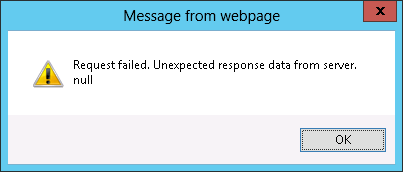 Knowing this script had worked for months in the past, I turned to the Internet. Sure enough, others appeared to be experiencing the same problem. One app developer even worked around the problem by abandoning the use of JSOM altogether in favor of the REST APIs.
What’s the problem here?
In a cloud-hosted app, the app’s business logic is deployed to a remote web (separate from its app web, which resides in SharePoint). This remote web is likely on a different domain (and is definitely on a different domain if you are using SharePoint Online). Querying for data that resides in the app web from a script running in your remote web requires the use of cross-domain JavaScript calls, which are generally blocked for security reasons. To work around this requires the use of the JavaScript Cross-Domain Library (sp.requestexecutor.js).
My demo script looked like this:
var clientContext = new SP.ClientContext(appweburl); var appWeb = clientContext.get_web(); appWebList = appWeb.get_lists().getByTitle(listname); var camlQuery = new SP.CamlQuery(); camlQuery.set_viewXml("50 Once I initialized the ProxyWebRequestExecutorFactory object and set it as the factory of my ClientContext object, everything worked as expected. (NOTE: The script in my demo that queried for data in the host web was already making proper use of the cross-domain library.)
Here is the proper script to initialize the ClientContext and associate the appropriate ProxyWebRequestExecutorFactory with it:
var clientContext = new SP.ClientContext(appweburl);
var factory = new SP.ProxyWebRequestExecutorFactory(appweburl);
clientContext.set_webRequestExecutorFactory(factory);
var appWeb = clientContext.get_web();

// Remaining code is the same as above
Conclusion
I’m not sure exactly what changed that would cause this problem to start occurring. Common sense dictates that the ProxyWebRequestExecutorFactory should be needed for all cross-domain calls, whether they be to the host web or the app web. I’m less concerned about that than why the old code ever worked (that did not make use of it). Nonetheless, if you find yourself in a situation where a script that definitely worked in the past now fails with an “Unexpected response data from server” error when using the JSOM, ensure you are making proper use of the cross-domain library as well.
Move list items with attachments between SharePoint farms: Access to the Rescue!
Update 8/27/2017: I updated the title of this post to avoid confusion about which versions of SharePoint and Access can be used. I also added a screenshot to this post showing where to find the option to import data from a SharePoint list using Access 2016 (it’s buried a little deeper in the UI than it was in Access 2013). I also verified that all the other steps in this article remain the same for Access 2016. One user posted an issue in the comments with the exported list displaying a “something went wrong” error in either classic or modern view, but I was unable to reproduce this with the list I was using to test. There are some documented issues (see section towards bottom of article) that will force a list to render using the classic experience, usually due to the data types of one or more fields in the list.
Original post appears below.
I was recently faced with the unenviable task of moving the full contents of a custom SharePoint list with about 60 columns (including attachments totaling about 400 MB) between a hosted instance of SharePoint 2007 and SharePoint Online. While there is no shortage of options for getting data from a list in one environment into another, I was constrained by the fact that this was a cloud-hosted instance of SharePoint 2007 where I had no server or administrator-level access. I went through a mental checklist of my options:
- Save the list as a template with contents – Nope. Way too big with those 400 MB worth of attachments.
- Export the list to Excel – Nope. Only includes the fields defined in the list view and does not include attachments.
- Create an empty version of the list in the destination environment, then use datasheet/quick view to copy data between the two lists – Nope. Again, the attachment problem (not to mention how tedious it would be to create identical views that would support datasheet/quick view in both environments).
- Write code to programmatically handle the export from SharePoint 2007 – Eh. With no server-level access in the cloud-hosted SharePoint 2007 environment, writing full trust code with the server object model was off the table. Theoretically I could have written code that leveraged SharePoint 2007’s .asmx web services, but I only wanted to go there as a last resort.
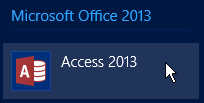
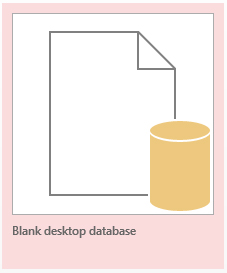
Then, as if by providence, I accidentally clicked to open Access 2013 when I actually meant to open Excel. I knew SharePoint 2013 had the hooks to import and export data using Access, but could I somehow use Access to pull the data out of SharePoint 2007? I clicked to create a new Blank Desktop Database and started my journey:
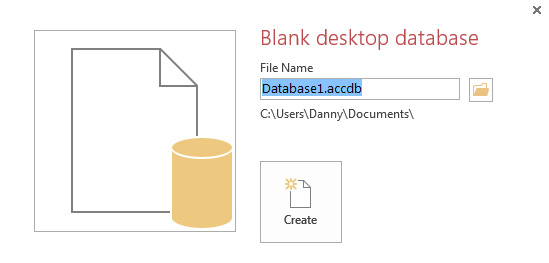
I gave the database a name and pressed Create:
Time to start poking around. I went to the External Data tab, and clicked More to reveal SharePoint List in the “Import & Link” section of the ribbon:
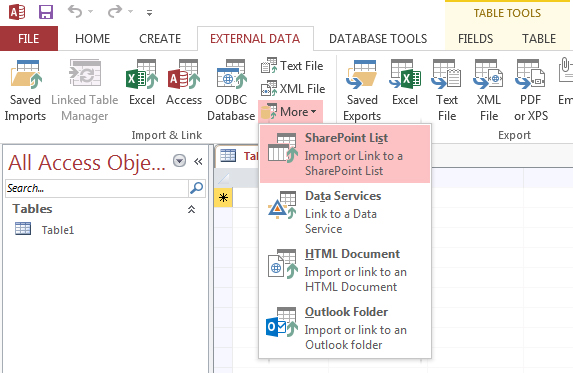
Importing a SharePoint list using Access 2013.
In Access 2016, select New Data Source from the Import section of the ribbon, then choose From Online Services and then SharePoint List:
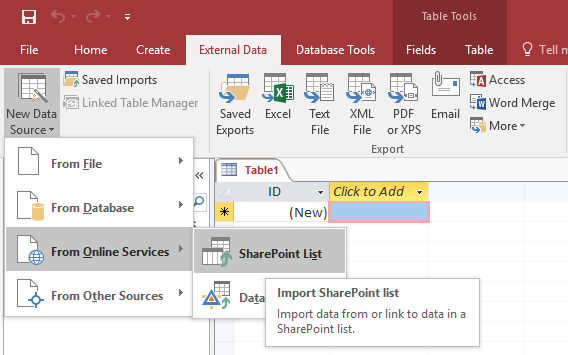
Importing a SharePoint list using Access 2016.
I entered the URL to my SharePoint 2007 site and chose to Import the source data into a new table in the current database.
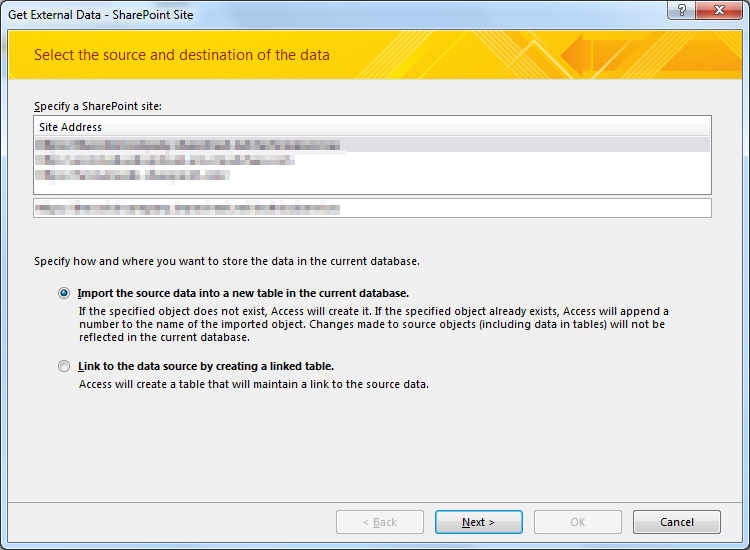
I selected the list I wanted to export and clicked OK.
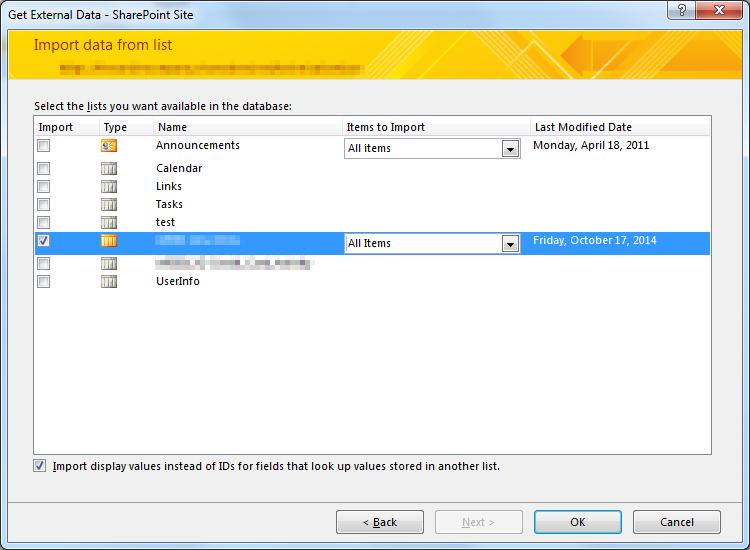
Access then proceeded to lock up my computer for several minutes as it imported the data, but it was worth the wait. Keep in mind that although logically we are exporting the data from SharePoint 2007, from Access’ perspective we are importing this data into Access. From here, we will export this data to a list in our SharePoint Online site.

When the import completed, I clicked Close and noticed in the “All Access Objects” view in the left pane, my database now contained a table named after the SharePoint list I just brought over. I double-clicked it and sure enough, all the data was there including the list item attachments!
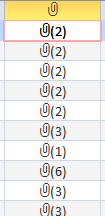
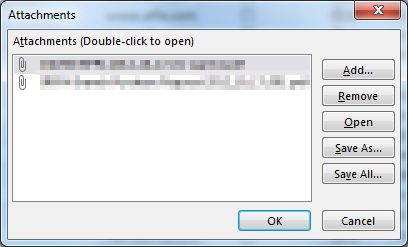
Stunned by my good fortune, I double-clicked some of these cells to confirm the attachments were actually there. They were!
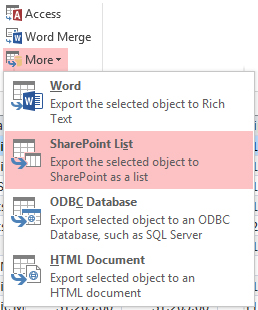
Time to get this data into SharePoint 2013. I went back to the External Data tab, and clicked More to reveal SharePoint List in the “Export” section of the ribbon:
Much like the import wizard earlier, the export wizard allows me to connect to a SharePoint site (I chose my SharePoint Online site this time) and specify a name for the new list.
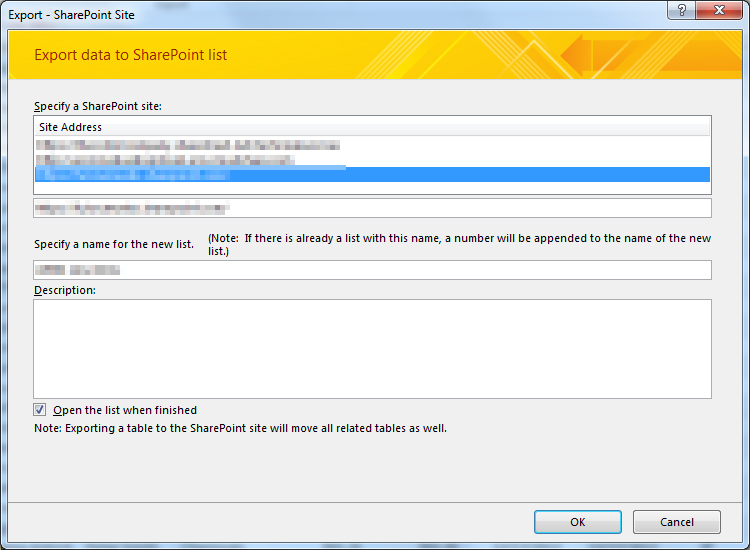
I pressed OK and allowed Access to do its thing (it took about 15 minutes). When it was done, my browser opened to the newly imported list in SharePoint Online. Not only was the list schema perfect (if you’ve ever imported a spreadsheet to create a new list, you know how frustrating it can be to have all of your Choice columns converted to Single line of text), but all the attachments to the list items were there as well!
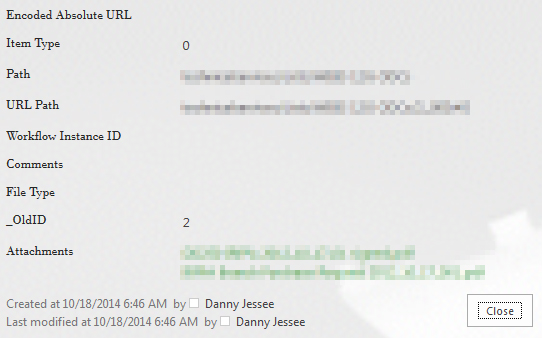
You will notice a few extra columns are created as part of the process:
- Encoded Absolute URL
- Item Type
- Path
- URL Path
- Workflow Instance ID
- Comments
- File Type
- _OldID
You can safely remove these from your new list if you do not want or need them.
Mission accomplished! Thanks, Access 2013!
Accessing SharePoint Data from Provider-Hosted Apps: Use the Right Context
I have spent the better part of the last two years working with the new app development model for SharePoint 2013. Recently I have focused on building apps that access, manipulate, and interact with data stored in SharePoint Online with Office 365. If you have done any development using the client-side object model (CSOM) for SharePoint, you understand the importance of instantiating the proper ClientContext object to access data in a particular SharePoint site. The ClientContext constructor takes as an argument the URL of a SharePoint site and allows you to access data stored in the Lists collection of the Web associated with it. In this post, I will discuss the various context objects you should use in your provider-hosted app depending on where the data your app needs to access resides and if the user’s permissions need to be considered. If you have been developing apps for SharePoint for awhile now (and even if you haven’t), I strongly encourage you to use Visual Studio 2013 and the Office Developer Tools for Visual Studio 2013 – March 2014 Update.
Host webs and app webs
When dealing with apps for SharePoint, you will become familiar with host webs and app webs:
- Host web – the SharePoint site to which an app is installed
- App web – the special isolated site (a unique app web is provisioned for each installation of the app) where the app for SharePoint’s internal components and content, such as lists, content types, workflows, and pages, are deployed
Note that a provider-hosted app is not required to have an app web, and in fact may not need one depending on your business requirements.
Your app will always have Full Control permissions to its app web. However, your app will need to request (and be granted) permissions by the user installing your app in order to access data in the host web. This is handled through the app manifest.
If your app needs to access data in the SharePoint site where it is being installed, you will be working with a host web context of some sort. As you will see, there are actually two different host web context objects, depending on the app authorization policy you choose.
Life made easy, thanks to SharePointContext.cs
When you create a new provider-hosted app in Visual Studio 2013, you have the option to create a new ASP.NET Web Forms or MVC application to serve as your app’s remote web application. If you are using the Office Developer Tools for Visual Studio 2013 – March 2014 Update, you also have the option to convert an existing ASP.NET web application to an app for SharePoint project (really cool!) In either case, you will notice that SharePointContext.cs is added to the remote web application project. This file contains class definitions for SharePointAcsContext and SharePointHighTrustContext, which allow you to create host web and app web context objects based on whether your trust broker is ACS (which it is with Office 365) or if you are on premises. I won’t delve into too much more detail in this post, but Kirk Evans has an outstanding writeup about these classes.
Accessing data in the app web
To access data in the SharePoint app web from your app, use the following pattern:
CSOM (C#)
var spContext = SharePointContextProvider.Current.GetSharePointContext(Context);

using (var clientContext = spContext.CreateUserClientContextForSPAppWeb())
{
    Web web = clientContext.Web;
    clientContext.Load(web);
    clientContext.ExecuteQuery();

    ListCollection lists = web.Lists;
    clientContext.Load(lists);
    clientContext.ExecuteQuery();
}
REST (C#)
var spContext = SharePointContextProvider.Current.GetSharePointContext(Context);
HttpWebRequest listRequest = (HttpWebRequest)HttpWebRequest.Create(spContext.SPAppWebUrl + "/_api/web/lists");
listRequest.Method = "GET";
listRequest.Accept = "application/atom+xml";
listRequest.ContentType = "application/atom+xml;type=entry";
listRequest.Headers.Add("Authorization", "Bearer " + spContext.UserAccessTokenForSPAppWeb);
JSOM
var appweburl = decodeURIComponent(getQueryStringParameter("SPAppWebUrl"));
var clientContext = new SP.ClientContext(appweburl);
var appWeb = clientContext.get_web();
var appWebListColl = appWeb.get_lists();
clientContext.load(appWebListColl);
clientContext.executeQueryAsync(onAppWebGetListSuccess, onError);
Accessing data in the host web
To access data in the SharePoint host web (the SharePoint site where your app is installed) from your app, use the following pattern:
CSOM (C#)
var spContext = SharePointContextProvider.Current.GetSharePointContext(Context);

using (var clientContext = spContext.CreateUserClientContextForSPHost())
{
    Web web = clientContext.Web;
    clientContext.Load(web);
    clientContext.ExecuteQuery();

    ListCollection lists = web.Lists;
    clientContext.Load(lists);
    clientContext.ExecuteQuery();
}
REST (C#)
var spContext = SharePointContextProvider.Current.GetSharePointContext(Context);
HttpWebRequest listRequest = (HttpWebRequest)HttpWebRequest.Create(spContext.SPAppWebUrl + "/_api/web/lists");
listRequest.Method = "GET";
listRequest.Accept = "application/atom+xml";
listRequest.ContentType = "application/atom+xml;type=entry";
listRequest.Headers.Add("Authorization", "Bearer " + spContext.UserAccessTokenForSPHost);
JSOM
var appweburl = decodeURIComponent(getQueryStringParameter("SPAppWebUrl"));
var hostweburl = decodeURIComponent(getQueryStringParameter("SPHostUrl"));
var clientContext = new SP.ClientContext(appweburl);
var factory = new SP.ProxyWebRequestExecutorFactory(appweburl);
clientContext.set_webRequestExecutorFactory(factory);
var appContextSite = new SP.AppContextSite(clientContext, hostweburl);
var hostWeb = appContextSite.get_web();
hostWebListColl = hostWeb.get_lists();
clientContext.load(hostWebListColl);
clientContext.executeQueryAsync(onHostWebGetListSuccess, onJSOMError);
Note that using JSOM, we still need to construct a ClientContext for the app web before we generate an AppContextSite for the host web, made possible through the SP.ProxyWebRequestExecutorFactory.
A note about the app-only authorization policy
By default, authorization checks in the host web succeed only if both the current user and the app have sufficient permissions to perform the action in question, such as reading from or writing to a list. We are reminded that the user’s permissions are taken into account based on the names of the context and access token objects we use in these scenarios: for instance, CreateUserClientContextForSPHost and UserAccessTokenForSPHost. However, your app has the ability to do something akin to running with elevated privileges using the app-only policy for authorization. Also controlled through the app manifest, the app-only policy is useful when an app doesn’t need or want to consider the permissions of the current user. In Visual Studio 2013, you can specify that your app would like to have the ability to use the app-only policy by checking this box in the AppManifest.xml editor, on the Permissions tab:
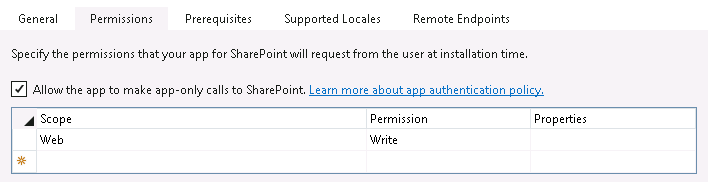
That being said, just because your app is granted this permission does not mean that you can use the same host web context or access token as before to automatically leverage it. To access data from the SharePoint host web (taking only your app’s permissions into account and ignoring the current user’s permissions) from your app, use the following pattern:
CSOM (C#)
var spContext = SharePointContextProvider.Current.GetSharePointContext(Context);

using (var clientContext = spContext.CreateAppOnlyClientContextForSPHost())
{
    Web web = clientContext.Web;
    clientContext.Load(web);
    clientContext.ExecuteQuery();

    ListCollection lists = web.Lists;
    clientContext.Load(lists);
    clientContext.ExecuteQuery();
}
REST (C#)
var spContext = SharePointContextProvider.Current.GetSharePointContext(Context);
HttpWebRequest listRequest = (HttpWebRequest)HttpWebRequest.Create(spContext.SPAppWebUrl + "/_api/web/lists");
listRequest.Method = "GET";
listRequest.Accept = "application/atom+xml";
listRequest.ContentType = "application/atom+xml;type=entry";
listRequest.Headers.Add("Authorization", "Bearer " + spContext.AppOnlyAccessTokenForSPHost);
Remember that in order to use the app-only policy, your app must request and be granted this permission by the site owner who installs your app. Also note that there is no JSOM example using the app-only policy because apps that do not make OAuth authenticated calls (such as apps that are only JavaScript running in the app web) cannot use the app-only policy.
As you can see, the code you write in each of the above scenarios (accessing data in the app web, host web, or using the app-only authorization policy) is identical except for the method or property you use from the SharePointContext class to get the appropriate context or access token. Understanding these subtle differences is vitally important when making sure your app has the ability to access and manipulate the SharePoint data it needs.
SPS Events DC (Chevy Chase) Recap
A huge thank you to everyone who came out to SPS Events DC at the Microsoft office in Chevy Chase, MD today! I was honored to represent Fulcrum at my fourth SPS Event so far in 2014 and speak to a crowd of developers and IT professionals about cloud-hosted apps for SharePoint 2013.
With the recent news from the Office 365 Team about the Autohosted Apps Preview Program (spoiler alert: it ends June 30th), I have refined this talk to focus almost exclusively on Provider-hosted apps for SharePoint 2013. If your organization has made any investments in Autohosted apps (and each of the last two times I have given this talk, at least one person in the audience has), there is a step-by-step guide for transitioning your Autohosted apps to Provider-hosted apps here.
There was tremendous audience participation during my session today, which I always appreciate. We had lots of good discussions about “the art of the possible” with Provider-hosted apps, including when to use CSOM, JSOM, and/or REST in our apps. We also discussed OAuth and the cross-domain library, which allow us to securely access and manipulate data stored in SharePoint from external web applications, whether they live on-premises or in the cloud.
I love speaking at SPS Events DC, which happen each year in Reston and Chevy Chase. The team of organizers and volunteers who put this event together are second to none, and it’s always fun to catch up with so many of my friends and colleagues in the DC SharePoint community.
My slide deck from today’s session is below. The code I used in my sample Provider-hosted app may be downloaded here. Feel free to reach out to me in the comments or on Twitter if you have any questions!

SharePoint Event brings Fulcrum to Boston
Photo courtesy @SPBrennan
As you read in my previous post, Fulcrum frequently travels across Virginia and the DC metro area to speak about the capabilities of the SharePoint platform to software developers, IT professionals, and end users at SharePoint user groups and one-day conferences known as SPS (SharePoint Saturday) Events. These events are held in cities around the world and are completely free to the public. The speakers and attendees at these events volunteer their time and sacrifice a Saturday to help others learn more about SharePoint and all the possibilities it offers. On April 12th, I headed north to Beantown to present at the SPS Boston Event at the Microsoft office in Cambridge, Massachusetts.
Fulcrum develops and maintains many custom solutions built on the SharePoint platform for our Army INSCOM and Department of Education customers, among others. Many of these solutions are built using a paradigm known as “farm solutions,” where custom code utilizes resources on the same servers that run SharePoint. This can potentially have an adverse impact on the performance of the SharePoint environment. To address this, SharePoint 2013 introduces a brand new app development model that allows custom code to be deployed anywhere, including the cloud or even a Java application server! I presented a session entitled “Build Secure Cloud-Hosted Apps for SharePoint 2013.” In this session, I demonstrated different ways that apps hosted in the cloud can securely work with data stored in SharePoint and discussed how the new app model has the potential to revolutionize SharePoint development, making SharePoint farms run more reliably and efficiently while helping our customers to realize significant cost savings.
If you are interested in learning more about SharePoint 2013 and the new app development model, I encourage you to reach out to me—or any other member of the SharePoint community—anytime. Members of the SharePoint community pride themselves on being accessible and are eager to share their knowledge, guidance, and advice with other SharePoint users around the world. To find the next SPS Event near you, visit http://spsevents.org.
Fulcrum Presents at Regional SharePoint Events
Many of our government customers leverage different versions of SharePoint to collaborate, automate business processes, and share data. Fulcrum has developed numerous custom solutions built on the SharePoint platform. In addition to being a robust and feature-rich platform, SharePoint is widely known for its enthusiastic community of developers, administrators, and end users who freely volunteer their time and energy to share their knowledge at one-day conferences known as SPS (SharePoint Saturday) Events, as well as local and regional SharePoint user groups around the world. These events are completely free to the public, who also volunteer their time to learn more about SharePoint and all the possibilities it offers. I have had the privilege of representing the talented SharePoint professionals at Fulcrum, presenting at several such events over the past few months.
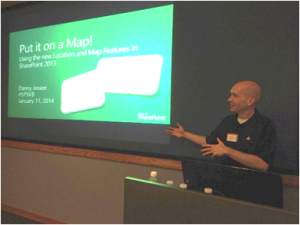 Last November 7th, I presented an introductory session on the new app development model for SharePoint 2013 at the Federal SharePoint User Group and Women in SharePoint DC. This paradigm shift for custom development promises greater reliability and up-time in on-premises SharePoint environments like the ones our customers rely on for critical mission operations. On January 11th, I had the privilege of presenting at SPS Events – Virginia Beach. This was the third year I have spoken at this event. My session was entitled Put it on a Map! Using the new Location and Map Features in SharePoint 2013. As the name implies, I spoke about the many enhancements the latest version of SharePoint offers with respect to “geolocation metadata”—essentially plotting data associated with a particular location on a map. This gives us the potential to bring engaging mapping solutions to our clients and their customers more readily and reliably than ever before. These capabilities are of particular interest to our defense and military customers, where enabling our Armed Forces to quickly and efficiently find information based on a geographic location can save lives. I also presented the Put it on a Map! session at the Reston SharePoint User Group on March 10th.
I will be representing Fulcrum at SPS Events – Boston on April 12th and at several other SPS Events and user groups in the months ahead, presenting more advanced sessions about building secure cloud-hosted apps for SharePoint 2013.
 If you are currently using SharePoint, or are just interested in learning more about it, I encourage you to reach out to me—or any other member of the SharePoint community—anytime. Members of the SharePoint community pride themselves on being accessible and are eager to share their knowledge, guidance, and advice with other SharePoint users around the world. If you are interested in learning more about Fulcrum’s capabilities, I encourage you to visit our website at http://www.fulcrumco.com.
- Our footer